Saturday, December 8, 2012
Windows 8 all the way
As much as like Windows 7 (Ultimate) I decided to go all the way Windows 8. So instead of having a dual boot with Windows 7, I installed Windows 8 Pro as the main operating system in my DELL machine. However, I only made that decision when I tested that Windows 7 would run well in a virtual machine. I tried initially Hyper-V client (built into Windows 8 Pro) but I chose to stick with what I've used before and know better: VMware Workstation (though the latest version 9). While I will still work inside Windows 7 for a while, my decision to use Windows 8 Pro as the host operating system has to do primarily with having a development environment which is exclusively tailored for this OS. I will have Visual Studio Express 2012 and other tools for development and review, and obviously to contribute to this blog. I reinstalled Microsoft Office 2010 Professional in the Windows 7 virtual machine and expect to have "Modern Office" installed under Windows 8 Pro.

Tuesday, October 30, 2012
Monday, October 29, 2012
New myth: Windows 8 has a steep learning curve
In an article about the new Windows 8, David Pogue, of the New York Times, (Windows, Revamped and Split in 2) tries to convey the idea that Windows 8 is actually two operating systems into one: Desktop Windows and Windows Tiles (I don't want to repeat here the silly name he made up). "Individually, they are excellent — but you can’t use them individually", argues Pogue, but, yes, you can use both in the same computer, there's nothing 'schizophrenic' about that. And then the already widespread myth that Windows 8 has a steep learning curve: "The Windows 8 learning curve resembles Mount Everest." Even the average Joe, without even having seen Windows 8 "already knows" that, thanks to the rumor mill fed also by those who you may think know better. For Pogue the perfect situation would have been keeping the two operating systems separate, leaving the Windows Tiles in a tablet with a touch screen and the Windows 8 traditional desktop on mouse and keyboard PCs, and "the good work Microsoft did on both of these individual operating systems would shine", he concludes. At least Pogue is able to see the good in Windows without the blinders of a Mac user or a Linux user. His "Windows 8 Cheat Sheet" is a good reference for using the new operating system with the mouse and keyboard, and ironically enough, shows that it's not that difficult.
The New York Times' troll video about the new Windows 8
 |
| According to the New York Times this is the look of a another "flummoxed" user (this one a Mac user) trying to "figure out" the new Windows 8 interface. |
- The "invited" users are sitting in front of an Acer laptop, no Surface tablet in sight. They're "trying" to move around the main screen and all they accomplish is softly swiping their index finger right and left. Hard to believe they could not go beyond that point, and tap into any of the tiles. Just about any toddler could've done that easily. I can see that in New York very often in the subway: toddlers navigating effortlessly iPads, all types of smartphones, etc. The interviewees were not exactly the newest generation of electronic device users.
- "Windows 8 is the most radical change to the look of [Microsoft] sofware since the late 1980's", says the voice-over of Mr. Gallagher while showing some screen shots of Windows 3.1, which was introduced in 1992 (!) Are you serious?! One of the most radical changes occurred 17 years ago with Windows 95. Windows 8 is the most radical so far.
- "None of the people we've interviewed plan to upgrade right away". Kind of obvious for the Mac Users. As of the other users, two old timers, and the clueless lady, who says "That's so cool", and "awesome" and "how do I go back?", obviously not, either.
Finally, another article related to this troll video is Daily Report: Windows Makeover May Cause Head-Scratching. I know I have missed other articles and other media, but this is but a sample of the "bad press" that Windows 8 has gotten, gets and will get. The authors may mean well, and sincerely believe what they say, but I disagree with them. Somehow the competition finds always a way to discredit their rivals with unfair arguments, because they feel perhaps threatened...?
Monday, August 20, 2012
Windows 8 RTM running in a Hyper-V virtual machine

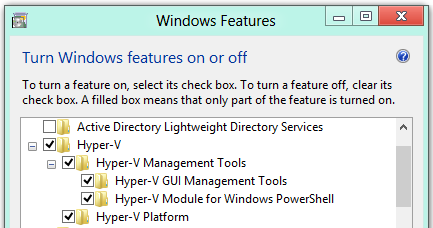
Virtualization is built into Windows 8
Oh, please! Stop complaining and just type...

Subscribe to:
Posts (Atom)